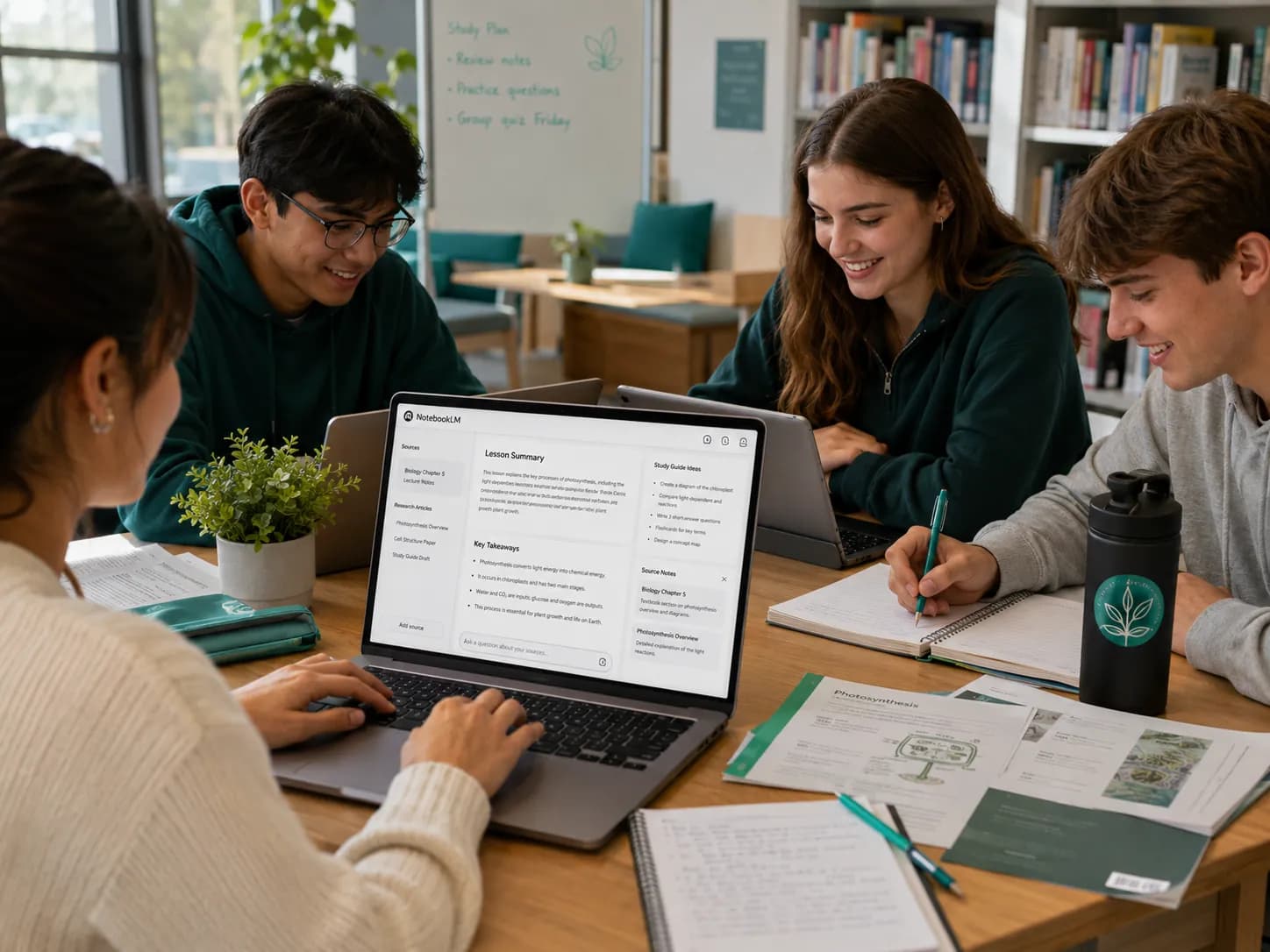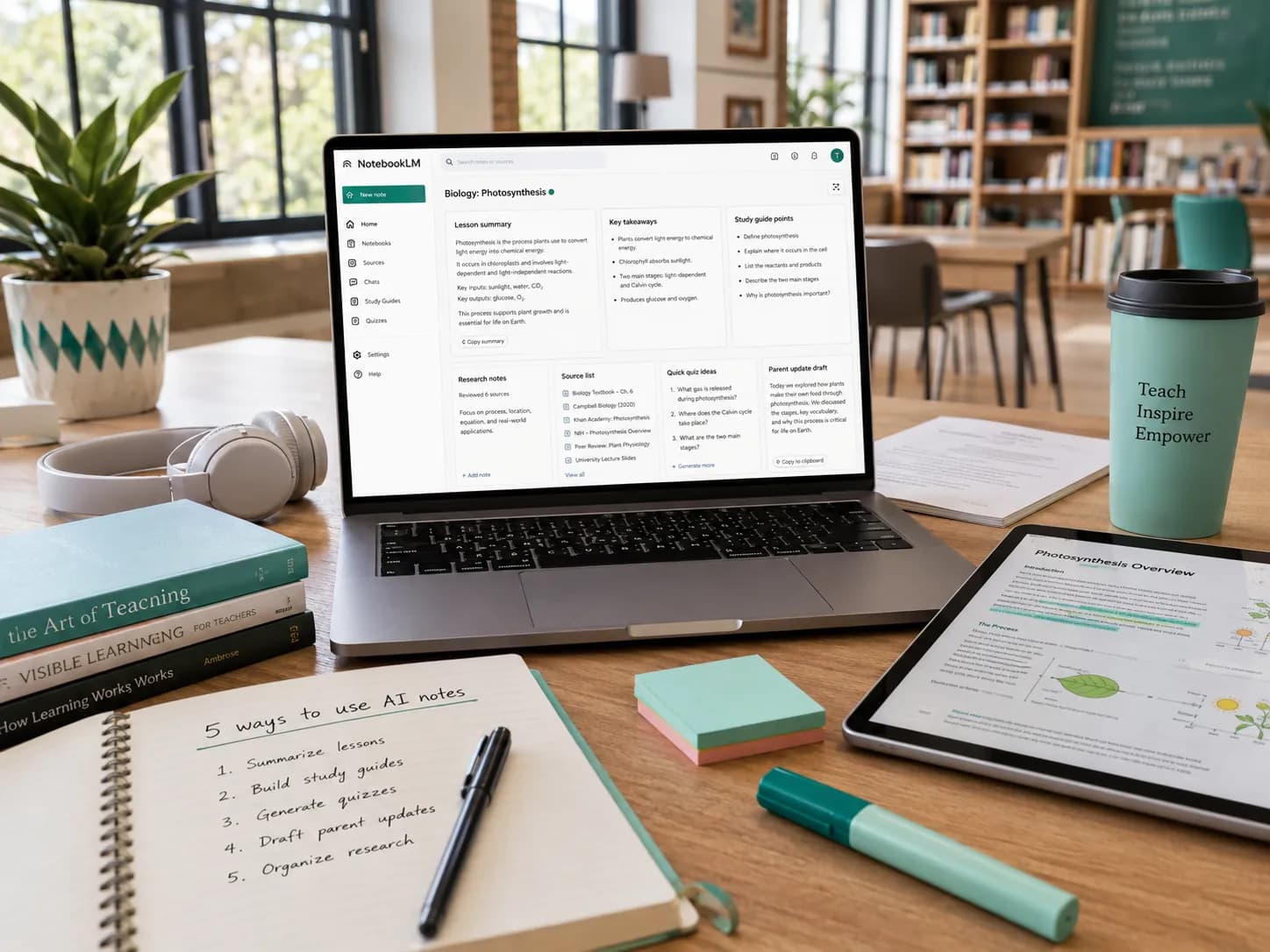
On 4 July 2026, Google's NotebookLM added a "Short Video Overview" feature. Point it at a document in one of your Notebooks and it turns that document into a roughly 60-second narrated clip, with autogenerated captions and a shareable file link. No editing software, no script, no recording your own voice. For tutors, that is a new way to turn dense lesson notes or a long research article into something a student or a parent will actually watch.
This guide covers five practical tutor workflows you can try this week, a ten-minute set-up walkthrough, and how to keep those clips organised inside your normal record-keeping instead of losing them in a downloads folder.
Why tutors should care about 60-second video overviews
Students do not read long recaps. Parents skim them. You already know this, because you have written a careful lesson summary and watched it go unopened.
The gap is not effort, it is medium. Dense material asks for attention that a busy Year 10 student or a working parent does not always have. A 60-second video with narration and captions asks for far less, in the same format short-form video has trained everyone to consume. It lands where a wall of text bounces off.
That is why this matters beyond novelty. A video overview is a new medium for the communication you already do. The recap, the primer, the "here is what we will cover next week" message, all of it can now go out as something people watch instead of something they mean to read later, closing the distance between the material you prepare and the understanding that reaches the student.
Quick set-up guide: your first NotebookLM video in 10 minutes
You do not need any video skills. The whole point of the feature is that NotebookLM does the production for you.
- Create or choose a Notebook. In NotebookLM, a Notebook is a workspace tied to your source documents. Make one per subject, per student, or per topic, whatever keeps things findable later.
- Upload your source. Add the lesson PDF, a Google Doc of your notes, a slide deck, or a chapter you have the right to use. NotebookLM reads only the sources you give it, which is what keeps the output grounded in your material.
- Generate the video overview. Open the Studio panel and choose the video overview option. NotebookLM narrates a summary of your source and produces a roughly 60-second clip with captions.
- Check the transcript for accuracy. This is the step tutors skip and regret. Read the transcript before you send anything. AI narration can flatten a nuance or restate a definition slightly wrong, and you are the subject expert who will catch it.
- Download the MP4 or copy the share link. Save the file, or grab the shareable link if you would rather send families a link than an attachment.
Ten minutes the first time, closer to three once you have done it twice.
5 tutor workflows that win back hours each week
The feature earns its place when it replaces work you already do by hand. Here are five workflows that save the most time.
1. Lesson-note recap video for parents after each session
Instead of typing a paragraph after every lesson, feed today's notes into NotebookLM and generate a 60-second recap. Send it to the parent alongside your invoice or your usual message. Parents get a clear, watchable summary of what their child covered, and you get out of the daily writing loop. This pairs naturally with your written lesson notes: the note stays your record, the video becomes the parent-facing version. If you do not have a consistent note format yet, start from our free lesson notes template so every recap you feed in follows the same structure.
2. 48-hour exam cram: turn syllabus docs into bingeable clips
Before an exam, take each revision topic and generate a short video per section. Students watch them on the bus, between other subjects, or the night before, in a format that fits how they already consume everything else. A revision pack that would sit unread as a PDF becomes a small playlist of 60-second primers they can actually get through. And if you want to build the revision plan itself, not just the clips, our guide to the new Gemini models for tutors walks through creating a personalised exam study guide step by step.
3. Research booster: summarise academic papers before you plan a lesson
Good tutoring often means reading around the subject: a 20-page paper on dyslexia strategies, a new approach to teaching fractions, an exam-board report. Drop the article into a Notebook and generate a video overview to get the gist in a minute, then decide whether it is worth a full read before you build it into a lesson. It is a fast triage layer on top of your planning.
4. Marketing minute: repurpose an old lesson into a social teaser
Take a lesson resource you are proud of, strip out anything student-specific, and turn it into a short overview you can post on Instagram Reels or TikTok. It shows prospective families how you teach without you filming or editing anything. This is one small piece of a wider plan; our guide to marketing your tutoring business covers where these clips fit.
5. Staff PD: brief junior tutors with instant video summaries
If you run a centre or a small team, complex pedagogy articles rarely get read. Summarise a dense professional-development piece into a 60-second briefing and share it in your team channel. Junior tutors get the core idea in a minute, and the ones who want the full source still have it. It is the difference between "please read this 30-page report" and "watch this before Friday."
Where those clips live: keeping summaries organised in Teamlilit
A video overview is only useful if you can find it again when the parent asks in three weeks. A clip in your downloads folder is a clip you have lost. The fix is to store it next to the student and the lesson it belongs to, so your records stay the single source of truth.
Here is how that works in Teamlilit today:
- Attach the video to the lesson note. Download the MP4 from NotebookLM, then upload it as an attachment inside the lesson's note in Teamlilit, or paste the shareable link straight onto the note. The recap now lives on the exact lesson it recaps, next to what you covered and what comes next, so when a parent asks "what did you send us last month?" it is one note away, not buried in a chat. It is part of keeping proper student records rather than scattering them across apps.
- Generate a text summary to pair with the video. After a live session, Teamlilit's AI lesson summaries produce a written recap of the lesson you can save and edit. Pair that text with the NotebookLM video and you have both formats covered: the clip for the parent who would rather watch, the written note for the one who wants the detail.
- Tag the clip by context. Use student tags to separate exam-prep clips from regular lessons, so at revision time you can pull every exam recap for a student in one view instead of hunting through months of files.
- Share with families by link or email. Teamlilit does not currently have a parent login portal, so you share the video the way you share everything else: as an attachment or a Drive link in your usual message to the family. The record stays organised on your side, and the parent gets a clip they can open in a tap. If you are not sure how to frame these updates, our guide to communicating with parents as a private tutor covers the tone and cadence that keep families engaged.
To be clear about the boundary: Teamlilit does not create these videos or pull them from NotebookLM automatically. You make the clip in NotebookLM, then bring it into Teamlilit yourself. What Teamlilit gives you is the place for it to live, connected to the student rather than floating loose.
Guardrails: privacy, copyright, and accuracy
A new tool that eats documents needs a few rules before you point it at anything that matters.
- Do not upload copyrighted textbooks without permission. Feeding a published textbook into NotebookLM to generate summaries can cross a licensing line. Use your own notes, materials you have the rights to, or content you have permission to reproduce.
- Keep personal student data out of your sources. A video overview is built from the document you upload, so never put a child's full name, contact details, or anything personally identifiable into a source you might share. Summarise the material, not the student.
- Always spot-check the transcript. AI narration gets the gist right and the details occasionally wrong. Picture a maths recap that says "a prime number is divisible only by two" instead of "divisible only by one and itself." A student who trusts the clip now has a wrong definition. Read the transcript, fix the source, and regenerate. Thirty seconds of checking protects the whole point of the exercise.
- Keep the original notes. The video is a derivative. Your written notes stay the record of what actually happened in the lesson, which is what you fall back on for billing questions, parent queries, and continuity. The clip is a nice-to-have on top, never the only copy.
Will this replace tutors? A reality check
It is worth saying plainly, because the question is already in the room: no, a 60-second overview does not replace a tutor.
A video overview is a primer. It sets up understanding; it does not deliver it. A student watching a clip cannot ask the follow-up question, cannot be redirected when they have the wrong end of the idea, and cannot have the explanation reshaped for how they think. That is the job of a tutor, and none of it is on the clip.
There is a learning-science reason this holds. Cognitive load theory says people learn when new material is broken down, sequenced, and adapted to what they already know, exactly the live judgement calls a human makes and a pre-recorded summary cannot. The overview lowers the entry cost so the student arrives with context; the human follow-up turns that context into retained understanding. The tool does not compete with you. It hands back the time you spent on the recap so you can spend it on the part only you can do.
Next step: plug the time savings back into higher-value teaching
The point of cutting prep time is not to work less, it is to move your hours to where they are worth more. When the recap writes itself, the freed-up time can go into:
- Progress reviews. A monthly look across a student's lesson history to spot what is working and what to change, the kind of review that keeps students enrolled. Our free student progress report template gives you a ready structure to send parents, and a student profile template keeps each learner's goals and background in one place so those reviews write themselves.
- New micro-sessions. Short, focused add-ons (an exam-technique clinic, a homework-help slot) that you never had the admin headroom to offer.
- Your own development. The professional reading you keep meaning to do, now that you have a way to triage it in a minute.
The tutors who get the most out of any tool are the ones who reinvest the time it saves, rather than just doing the same week faster. A tidy tutoring timetable and a proper booking page do the same thing on the scheduling side: they clear the admin so the teaching gets your best hours.
Frequently asked questions
Can I brand the NotebookLM video with my tutoring logo?
NotebookLM does not currently support custom branding inside the video. Tutors can add a branded intro or outro using any basic video editor before sending the clip to families.
How big is the exported file and can I email it?
A typical 60-second MP4 is around 8 to 15 MB. Most email systems allow 20 to 25 MB attachments, so a single clip usually sends fine. For anything larger, store it on Google Drive and share the link instead.
Does Teamlilit automatically pull videos from NotebookLM?
Not today. You download the video from NotebookLM, then attach it to the lesson note in Teamlilit, either by uploading the file or pasting the share link. There is no automatic import between the two tools.
Is NotebookLM safe to use with student materials?
Use it for teaching content, not personal data. Do not upload copyrighted textbooks without permission, keep personally identifiable student information out of your source documents, and always spot-check the transcript before sending, because AI summaries can still misstate a definition or a date.
Will video overviews replace tutors?
No. A 60-second overview is a primer, not instruction. Students still need a person to clarify, adapt, and respond in real time. Video overviews work best when they handle the recap so your live time goes to the teaching only you can do.
Short video overviews are a genuinely useful addition to a tutor's toolkit, as long as you treat them as one piece of a connected system: the clip for reach, your written notes for the record, and one organised place for both. If your lesson history currently lives across a notebook, a downloads folder, and three chat threads, that is the real problem to fix first.
Want your recaps, notes, and student records in one place? Start a free 14-day trial and store your first NotebookLM clip alongside the lesson it belongs to. No credit card required.