Zoom, Google Meet and Microsoft Teams can each give the organiser a list of who joined a meeting and when, but only on some plans. Zoom needs a paid licence, Google Meet needs one of a few paid Workspace editions, and Teams gives organisers a CSV file in work, school and small-business accounts. Here is how to get each one, step by step.
Zoom, Google Meet and Teams attendance reports compared
All details below were read on each vendor's help pages on 21 November 2026.
| Zoom | Google Meet | Microsoft Teams | |
|---|---|---|---|
| Where to find it | Web portal: Reports, then Meeting and webinar history | An email to the organizer after the meeting | The meeting's Attendance tab, or the Participants pane during it |
| What it shows | Join and leave times, guest status | First and last name, email, time joined, time exited, duration | Who attended, join and leave times, some engagement data |
| Format | CSV export | Google Sheets | CSV download |
| Who gets it | The host | The organizer | Organizers and co-organizers |
| Plans | Pro, Business, Education, Enterprise. Not Basic | Business Plus, Enterprise editions, Essentials, Education Plus, Teaching and Learning Upgrade | Teams for work, Education and small business (check Teams free) |
How to get a Zoom attendance report
Zoom calls it a participant report. According to Zoom's help page:
- Host the meeting from a paid account. Reports need a Pro, Business, Education or Enterprise account; only meetings hosted by paid accounts generate reports.
- Sign in to the Zoom web portal after the meeting.
- Open Reports, then Meeting and webinar history.
- Find the meeting and click its participant count.
- Export as CSV if you want to keep it or open it in a spreadsheet.
The report shows when each participant joined and left, and whether they joined as a guest.
How to take attendance on Zoom without a report
On the free Basic plan there is no participant report. You keep the record yourself: during or right after the lesson, write down who came, when they arrived and when they left. Use the same columns every week so that the month adds up. Our tutoring attendance record examples show what to keep. Free Zoom also stops meetings at 40 minutes: see our guide to the Zoom 40-minute limit.
How to get a Google Meet attendance report
Google calls it attendance tracking. According to Google's help page:
- Check your edition. It is available on Business Plus, the Enterprise editions, Essentials, Education Plus and the Teaching and Learning Upgrade. It is not on Business Starter, Business Standard, Education Fundamentals or Education Standard, and not on a free personal Google account. If you use Workspace Individual, check Google's page for your plan.
- Turn it on as the organizer, in the meeting's settings.
- Teach the lesson. The meeting needs at least 2 attendees for a report.
- Open the email you receive after the meeting. It comes with a Google Sheets attendance report giving each person's first and last name, email, time joined, time exited and duration. For someone who joined several times, it gives the total duration.
What about Google Meet attendance tracker extensions?
Search results for a Google Meet attendance tracker also show browser extensions. They are made by third parties, not by Google. Before you install one, check who makes it and what it can read in your meetings, because your students are in those meetings. On a free account, the record you keep yourself is the safe default. Free Meet also limits meetings of 3 or more people to 60 minutes: see our guide to the Google Meet time limit.
How to get a Teams attendance report
According to Microsoft's help page:
- Be the organizer or a co-organizer. Only they can view and download the report.
- After the meeting, wait a few minutes, open the meeting and go to its Attendance tab.
- Download the report as CSV. It shows who attended and when each person joined and left, plus some engagement data.
- During the meeting, you can also download it from the Participants pane.
Microsoft's attendance report page covers work, school and small-business Teams; if you use Teams free, check whether your meeting has an Attendance tab.
What a meeting report does not do for a tutor
A meeting attendance report answers the question "who was in this meeting?". A tutor needs the answer to a different one: "how many lessons did each student attend this month, and what do I invoice?". The gap between the two is admin.
- It is a list of names per meeting, not a record per student. Each lesson gives you one more file. Nothing collects them by student.
- You match display names to students. A student who joins as "iPad" or under a parent's name has to be recognised by you.
- You add up the minutes yourself. Eight lessons a month means eight reports to open, per group or per student.
- You copy the totals into an invoice. The report knows nothing about your rates, packages or late cancellations.
- A missed lesson is invisible. A student who did not come is simply absent from the list; the report does not show that a lesson was booked and missed.
- On free plans there may be no report at all. Zoom Basic and free personal Google accounts have none.
Our guide on how to invoice tutoring students based on attendance covers the invoicing side.
Attendance reports are a workaround for a classroom that does not know your students
A meeting tool records a meeting. It cannot record a lesson, because it does not know who your students are. That is why the report is a list of display names you have to translate.
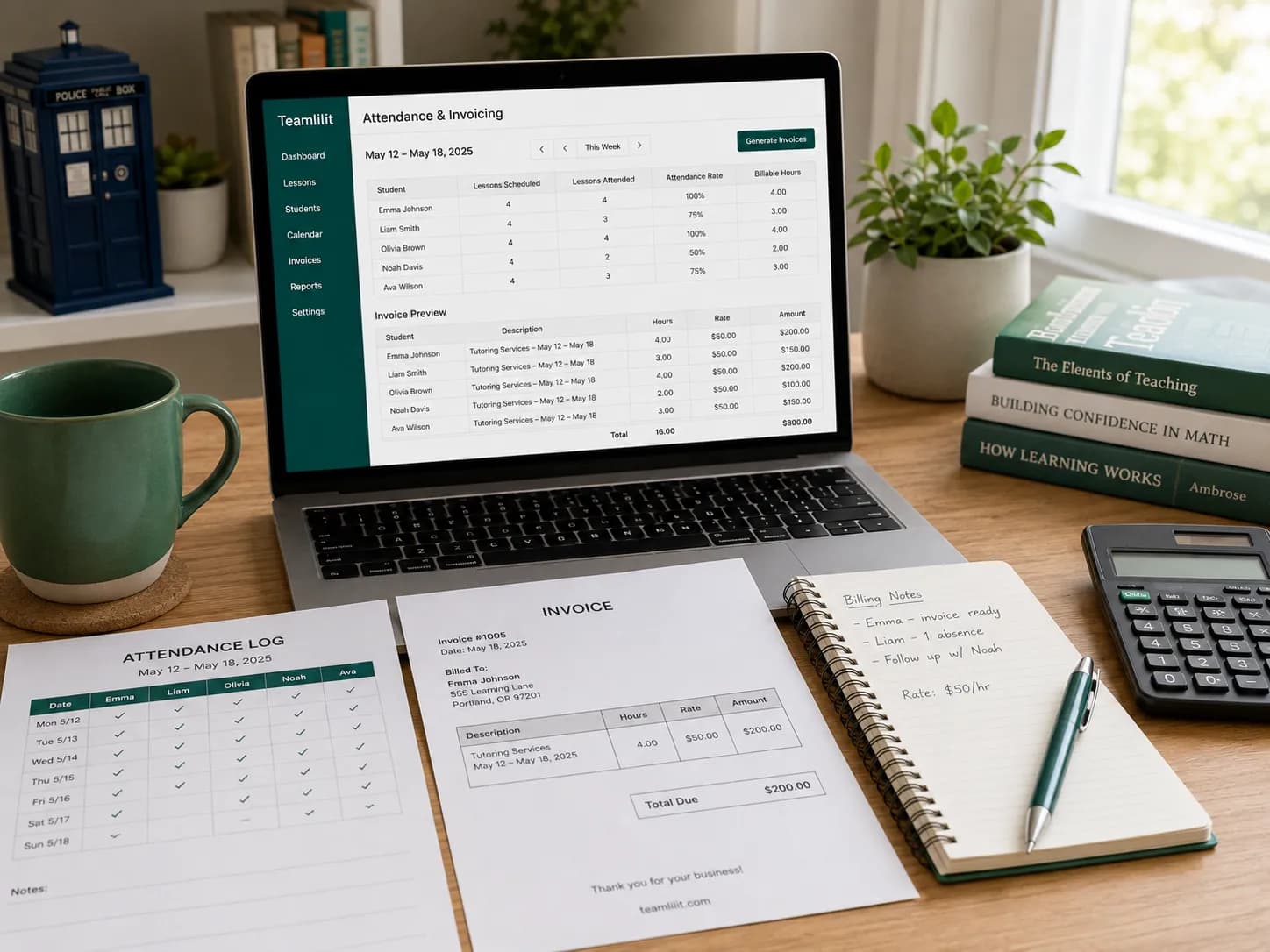
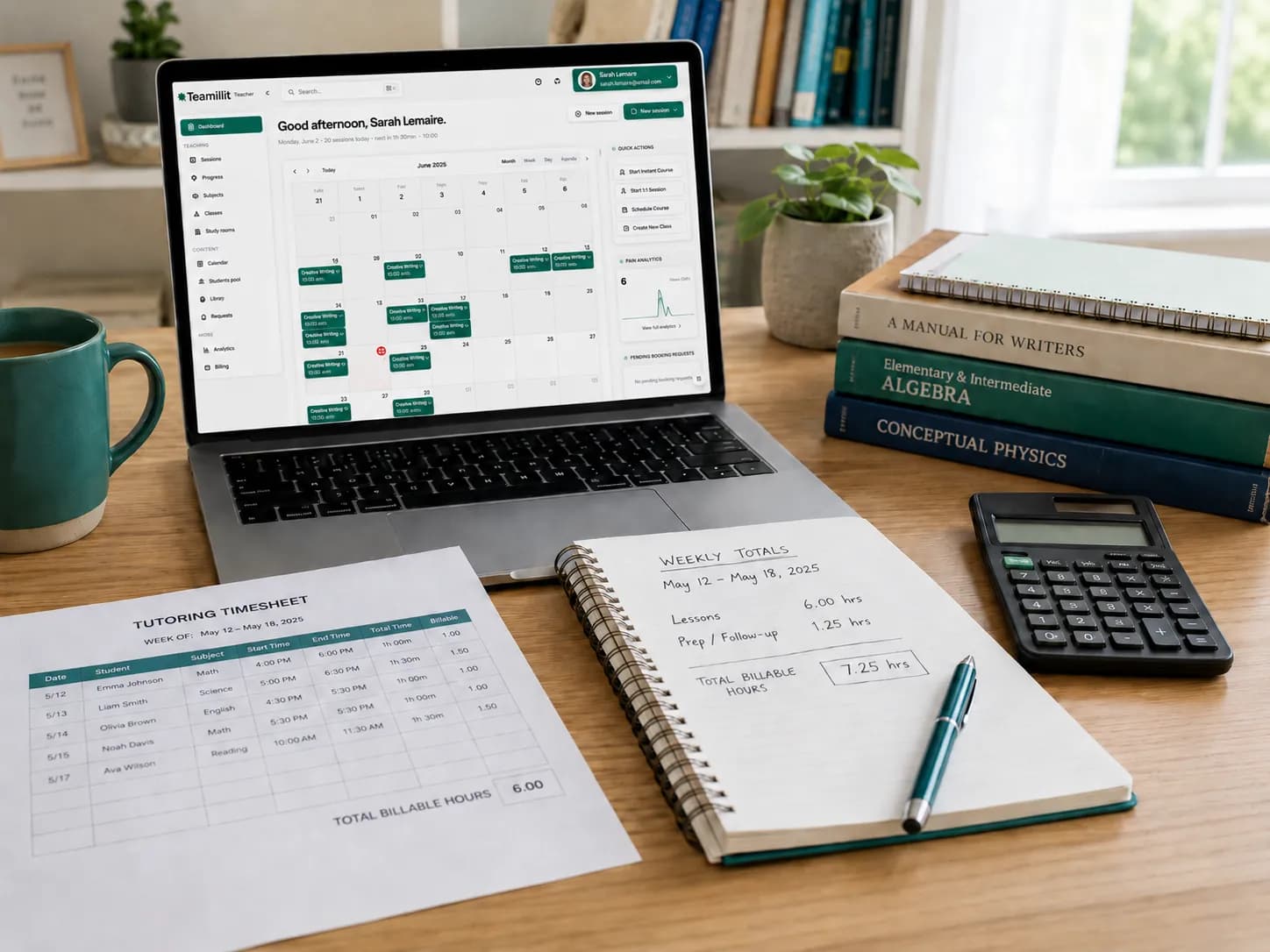
Teamlilit is our product, and it starts from the other end: the classroom is part of the tutoring software, so the lesson already knows which students it is for. Attendance records itself while you teach. Each student is stamped when they join and when they leave, and you can still correct it afterwards. The history stays on each student's profile, on every plan. At the end of the month you pick a student and a period, and Teamlilit fills the invoice lines from the lessons that student actually attended, at that student's rate. No display names to translate, no minutes to add up.
Teamlilit does not take payments: families pay you directly and you record it. To see how the records work, read about our tutoring attendance tracking software or the Teamlilit classroom.
Frequently asked questions
How do I get an attendance report in Zoom?
Sign in to the Zoom web portal, open Reports, then Meeting and webinar history, find the meeting and click its participant count. The report shows join and leave times and guest status, and you can export it as CSV. It needs a Pro, Business, Education or Enterprise account: meetings hosted on Basic do not generate reports.
Does Google Meet have an attendance tracker?
Yes, on some paid editions: Business Plus, Enterprise editions, Essentials, Education Plus and the Teaching and Learning Upgrade. The organizer turns it on in the meeting settings, and after the meeting receives a Google Sheets report with names, emails, times joined and exited, and duration. It is not available on a free personal Google account.
How do I download a Teams attendance report?
If you are the organizer or a co-organizer, open the meeting a few minutes after it ends, go to its Attendance tab and download the report as CSV. During the meeting you can download it from the Participants pane. Microsoft's page covers Teams for work, Teams for Education and Teams small business.
How do I take attendance on Zoom with a free account?
There is no participant report on the free Basic plan, so you keep the record yourself: during or right after each lesson, write down who came, when they arrived and when they left. A simple attendance record per student, kept the same way every week, is enough to invoice from.
Can I invoice tutoring students from a meeting attendance report?
You can, but it takes work. A meeting report is a list of names for one meeting. You still match display names to students, add up the minutes across the month and copy them into each invoice. Tutoring software that records attendance per student can fill the invoice lines from the lessons each student attended.
Sources
- 1Zoom Support: participant reports · ZoomReports, then Meeting and webinar history, then the participant count; join and leave times, guest status, CSV export. Read on 21 November 2026.
- 2Zoom Support: usage reports and account requirements · ZoomReports need a Pro, Business, Education or Enterprise account; only meetings hosted by paid accounts generate reports.
- 3Zoom Support: meeting time limit for Basic users · ZoomMeetings hosted by a Basic (free) user are limited to 40 minutes.
- 4Google Meet Help: attendance tracking · GoogleEditions that include it, the organizer setting, the 2-attendee minimum and the Google Sheets report with names, emails, times and duration.
- 5Google Meet Help: meeting length and participant limits · GoogleFree personal account, on a computer: meetings of 3 or more participants up to 60 minutes.
- 6Manage meeting attendance reports in Microsoft Teams · MicrosoftOrganizers and co-organizers; join and leave times; CSV from the Attendance tab or the Participants pane; covers Teams for work, Education and small business.
- 7Facts about Teamlilit · TeamlilitAttendance recorded per student on every plan, invoices from attended lessons, plans and the trial.
About Teamlilit
Teamlilit is software for independent tutors and small teaching businesses: scheduling, a lesson room with video, whiteboard and screen sharing, student records and invoices in one place. It does not find students and does not take payments. Plans start at 19 euros a month, and every new account starts with a 14-day trial, no card needed.